
Omnissa Horizon Client Download: 5 Best Sources for Windows
If you’re studying for a VMware certification—or any exam that involves building and managing a Horizon virtual desktop infrastructure—you need the Omnissa Horizon Client. It’s the tool that connects your Windows machine to remote desktops, classroom VMs, and practice labs. But typing “omnissa horizon client download” into a search engine can lead to third-party aggregators, outdated mirrors, or worse, malware-bundled repacks. The rebrand from VMware Horizon to Omnissa Horizon in early 2025 hasn’t helped; plenty of download sites still list the old VMware-branded client, leaving exam candidates unsure whether they’re grabbing the right binary. I’ve mapped out five sources that are safe, up-to-date, and well-documented, so you can focus on your exam prep instead of fighting broken client installs.
Every source below earned its place by meeting four criteria that matter to an exam candidate spinning up a lab. Authenticity means the installer comes directly from Omnissa or a vetted channel and carries a valid vendor signature. Version freshness covers both the latest stable build and access to older releases when you need to match a specific Connection Server. Speed and reliability speak for themselves—you don’t want a download that fails halfway through a late-night study sprint. And documentation includes release notes, compatibility matrices, and command-line guidance for scripting a silent install.
If you’re building a Horizon pod for a VCP-DCV or VCAP lab, using the wrong client version can break protocol negotiations, obscure feature testing, or lock you out of your own test desktop. Let’s look at the five best places to grab the installer.
Why your download source decides how smoothly your lab runs
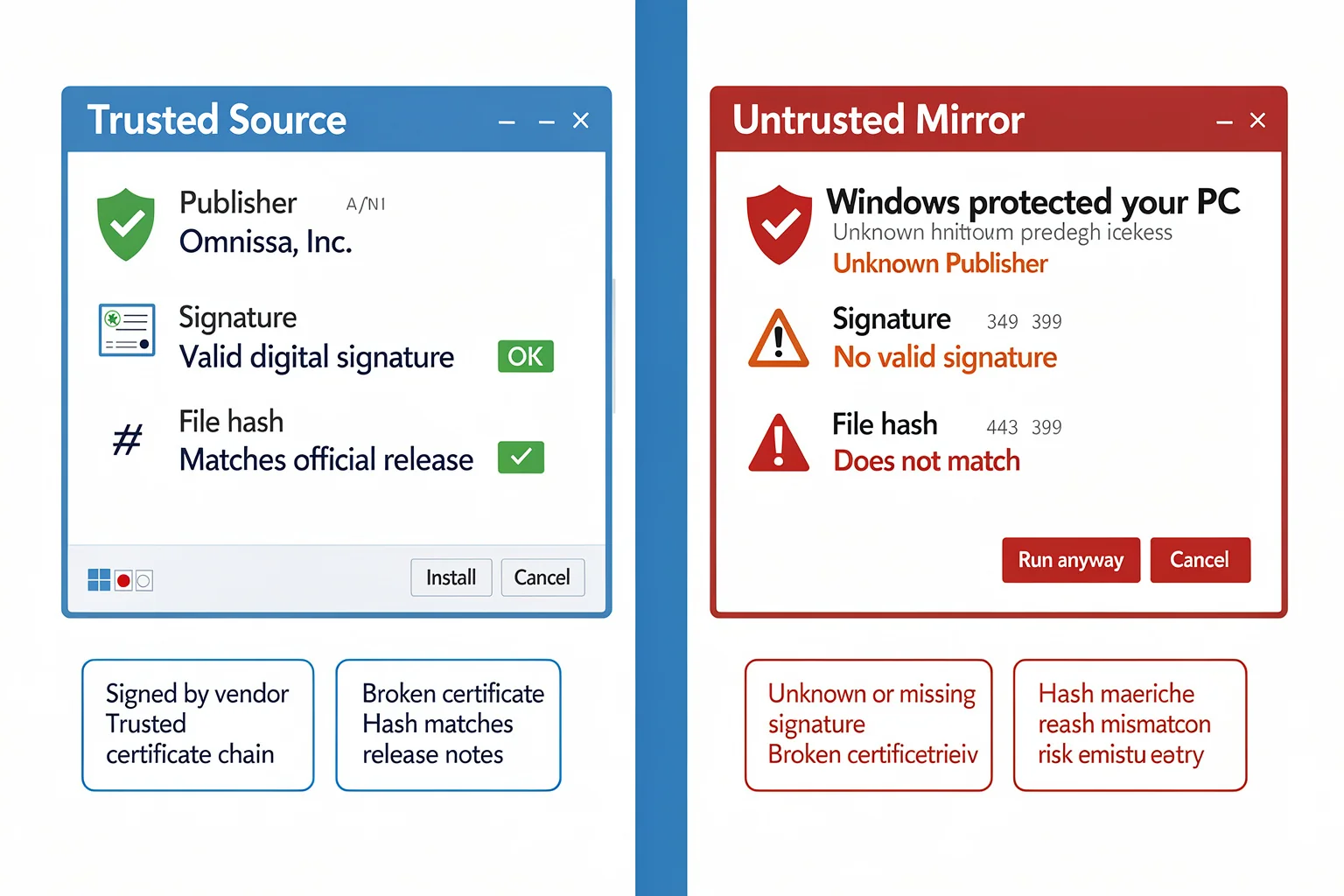
When a certification candidate downloads the Horizon Client from a random mirror, two things tend to go sideways. First, unsigned repacks are a real risk. Security researchers routinely find “freeware” download sites bundling the Horizon Client with adware or coin miners. A file that should be signed by Omnissa, Inc. instead shows an unknown digital certificate—or none at all. Even if the installer appears to work, running unsigned code on a machine that later connects to your employer’s lab network opens a backdoor you don’t want.
Second, version mismatches stall labs. Every Horizon release updates the Connection Server protocol, Blast Extreme codec, and client drive redirection components. The Horizon 2312 client, for example, introduced a rework of the USB redirection stack that the 2212 client simply doesn’t understand. If your training provider’s farm runs Connection Server 2312 and you connect with an older client, redirected printers may fail, the Blast session might stutter, or you’ll get a cryptic “protocol negotiation error” during login. An exam candidate troubleshooting those symptoms loses hours they could spend practising exam objectives. Understanding which client build matches your target server version is the first step; later, when you’re ready to map certification paths, the VMware certification tracks 2026 guide shows where lab skills like these pay off across VCP, VCAP, and VCIX levels.
A solid download source eliminates both problems. It gives you a known-good file and a clear line of sight to the exact build you need—plus a published SHA-256 hash so you can verify the bits before double-clicking.
Five trustworthy sources for the Omnissa Horizon Client
Each source below is appropriate for a specific lab setup. They aren’t ranked; the right one depends on whether you need the absolute latest build, an older locked version, automatic updates, or deep deployment guidance.
Omnissa official download page
The public-facing download page is the canonical starting point. Navigate to omnissa.link/horizonclient in your browser address bar. That short link redirects to the current client installer for Windows—both 64-bit and 32-bit MSIs—alongside release notes. Because Omnissa owns the domain and hosts the files directly, this source scores highest on authenticity and freshness. There’s no sign-in, no portal navigation; you paste the link, the download starts, and you’re done in under a minute.
Best fit: anyone building a lab from scratch who wants the latest stable client without creating an account. Limitation: older versions are absent here. If your training manual asks for a specific 2306 client, you’ll need the Customer Connect portal.
Omnissa Customer Connect portal
If you have a VMware or Omnissa account—even a free registered account works—head to Customer Connect. Log in, select “Products” → “Horizon Client,” and you’ll see every Windows release, current and historical, with SHA checksums, build numbers, and detailed release notes. The filter tools let you jump to a specific major version or date range. For example, typing “Horizon 2306 Windows” surfaces the exact MSI that shipped in June 2023, along with patch bundles if any were released later.
Best fit: lab builders who need to test compatibility across Horizon versions or who want to verify file integrity with official hashes. The portal also shows the corresponding Connection Server compatibility matrix, so you can confirm your client won’t be rejected. Limitation: the login requirement adds a small friction. The interface can feel sluggish when you just need a quick download, though once you’ve navigated it a couple of times, the extra 60 seconds becomes a habit.
Microsoft Store
Search for “Omnissa Horizon Client” in the Microsoft Store app and you’ll find a listing delivered through Microsoft’s infrastructure. The Store version auto-updates, runs through Microsoft’s malware scanning, and registers as a standard Windows application that’s easy to uninstall or reset. For candidates who use the same laptop for multiple exam labs, automatic patching saves the quarterly manual update routine.
Best fit: candidates with personal laptops who value convenience over fine-grained version control. The Store build won’t interfere with other VDI clients like Citrix Workspace, and it handles updates in the background. Limitation: the Store build sometimes lags a few days or weeks behind the standalone MSI. It doesn’t provide an MSI for scripting, and enterprise management tools may not recognise it as a standard Win32 app. You also can’t roll back to an earlier Store version—once it updates, that’s the build you’re running.
Horizon Cloud portal
If you use Omnissa Horizon Cloud (formerly VMware Horizon Cloud), the cloud console includes a “Download Client” link tied to your tenant’s approved version. In classroom environments where an instructor provisions desktops from a cloud pod, this link hands you precisely the client build that matches the hosted farm. There’s zero guesswork about compatibility because the tenant admin sets the allowed version.
Best fit: lab scenarios where the training provider specifies the portal download. Limitation: you need an active Horizon Cloud subscription or trial. The link is accessible only from the console session, so it’s less useful for stand-alone, on-premises lab setups. It also doesn’t let you browse older versions; it serves the exact version currently active for the tenant.
Omnissa documentation site
The Horizon Client for Windows installation guide at docs.omnissa.com always contains the current official download link—even if Omnissa restructures its main product pages, the documentation stays consistent. The same page lists system requirements, silent installation parameters, and Registry key references. For example, it documents the INSTALLDIR property to change the default path, the VDM_IP_PROTOCOL_USAGE flag for forcing IPv4, and the logging directory for troubleshooting. That makes the docs site a one-stop shop for the download plus all the deployment details you need.
Best fit: anyone who wants the download link and full technical deployment instructions in one place. If you’re scripting an unattended install for a lab environment with multiple Windows VMs, this page gives you the exact MSI properties. Limitation: the docs page doesn’t host the file itself; every download click takes you to the public download or Customer Connect area. That makes it an indirect source, but a trustworthy one—and one that tends to survive URL shuffles better than most.
Command-line and silent install tips for lab builders
Lab automation saves hours when you need to install the client across several Windows machines—a requirement in many VCAP deployment scenarios. The Horizon Client MSI supports a standard set of public properties you can pass to msiexec. Here’s a minimal silent install command:
msiexec /i "Horizon-Client-2412-x86_64.msi" /qn REBOOT=ReallySuppress INSTALLDIR="C:\HorizonClient" /L*v "%TEMP%\HorizonInstall.log"
The /qn flag runs the installer with no UI. REBOOT=ReallySuppress prevents an unexpected restart, which is critical when you’re mid-lab and have other services running. The INSTALLDIR property lets you place the client on a non-system drive if your lab VM has a small C: volume. The log file captures every action the installer takes, so if the install fails, you can grep the log for “Return value 3” and trace the exact cause.
If your lab uses Group Policy or Microsoft Endpoint Manager, you can deploy the MSI as a published application. The Omnissa documentation lists all supported properties, including DESKTOP_SHORTCUT=0 to suppress icon creation and STARTMENU_SHORTCUT=0 for a server-only install where no user will launch the client interactively.
Once the client is installed, verify the version from PowerShell with:
(Get-WmiObject Win32_Product | Where-Object {$_.Name -match "Horizon Client"}).Version
That returns the exact build string, which you can then match against the release notes. If you’re ever unsure whether a network hiccup left the install corrupted, compare the installed version string and the MSI’s digital signature against the published hash—which brings us to the next step.
Checking that your installer is genuine—even from a trusted source
Even when you download from an official channel, a quick verification takes 30 seconds and rules out any chance of a man-in-the-middle substitution or a cached malicious file. The two checks that matter most are the digital signature and the file hash.
First, verify the Authenticode signature. Open PowerShell and run:
Get-AuthenticodeSignature -FilePath "C:\Downloads\Horizon-Client-2412-x86_64.msi" | Format-List
The signer certificate should chain to “Omnissa, Inc.” or—for older builds still floating around—“VMware, Inc.” A missing or self-signed certificate is a red flag; delete the file immediately. Windows SmartScreen may flag a freshly downloaded MSI even when the signature is valid, because the client hasn’t built enough reputation yet. You can bypass SmartScreen safely on a known-good hash, but never on an unsigned binary.
Second, compute the SHA-256 hash and compare it against the value published in the official release notes:
Get-FileHash -Path "C:\Downloads\Horizon-Client-2412-x86_64.msi" -Algorithm SHA256 | Format-List
If the hash matches, the file is bit-for-bit identical to what Omnissa shipped. The Customer Connect portal always lists the hash; the public download page usually does, and the documentation site sometimes links to it. If you can’t find a published hash for the exact build you downloaded, skip the hash check—but only after verifying the signature, and only if you downloaded directly from Omnissa’s own domain.
Matching a source to your study workflow
Which source you pick depends on how your lab is set up. If you’re following a step-by-step video course that says “use Horizon Client 2312,” Customer Connect gives you that exact older build. If you’re joining an instructor-led cloud lab, the Horizon Cloud portal hands you a version that matches the hosted farm without any guesswork.
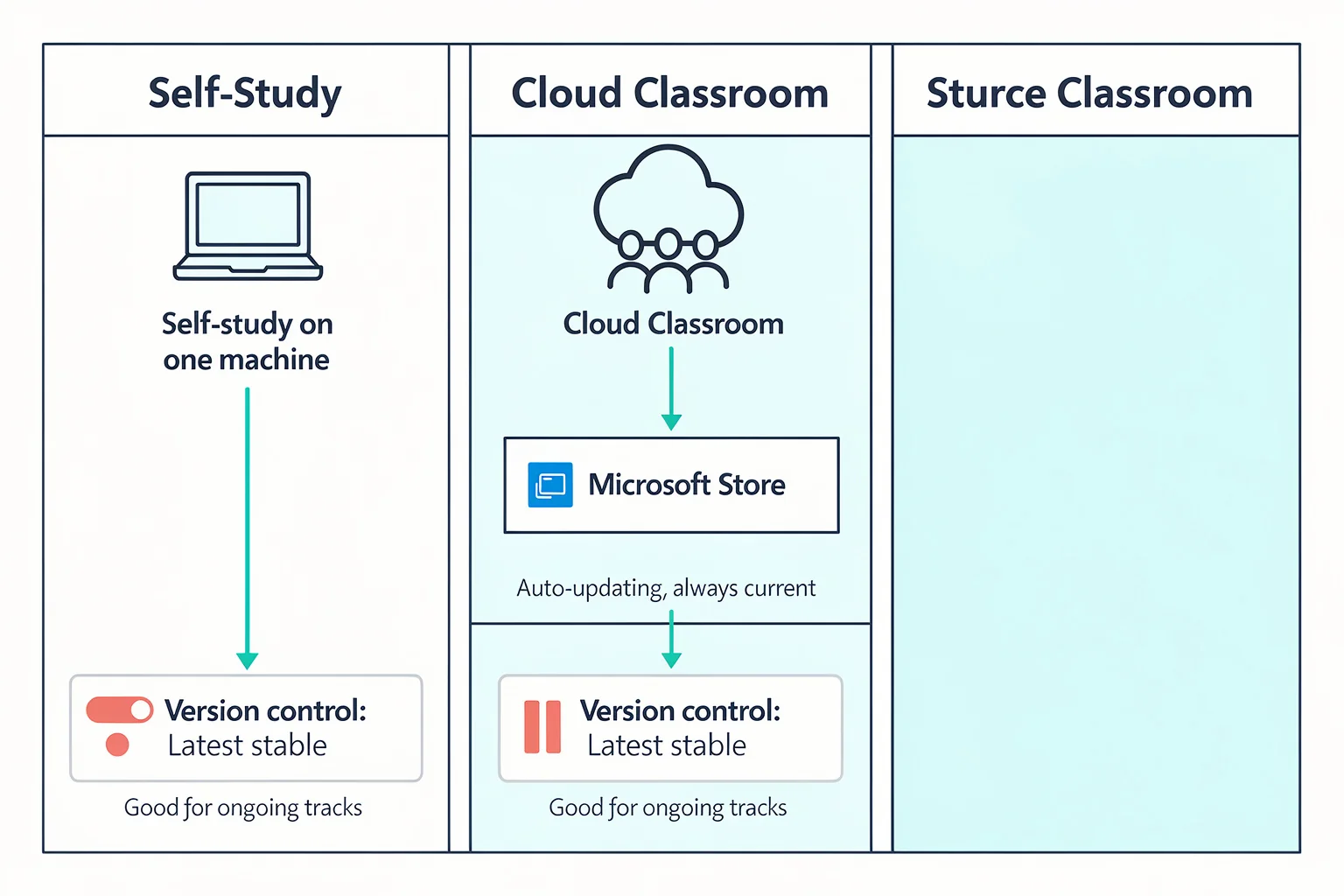
For self-study candidates who build everything on a single laptop, the Microsoft Store version often wins on convenience. You install it once, and it stays current while you work through multiple certification tracks. When you later need to test a feature that only appears in the very latest release—say, the updated collaboration toolbar or the new real-time audio-video encoder—the official download page or the documentation hub serves you the new bits immediately.
Say you’re preparing for the VCP-DCV 2026 exam. You spin up a Windows Server VM, install the Horizon Connection Server, and now you need the client on your Windows 11 laptop to test a desktop pool. You grab the client from omnissa.link/horizonclient, install it in under a minute, and connect to your lab. Once the lab is humming, you can switch to exam mode with PlanetCert’s VMware practice tests. Their simulator tracks your timing and question history, so you walk into the testing centre less nervous about the clock.
If you’re combining lab work with written prep, you might download the client from the Microsoft Store on your study machine, build a Horizon pod, then switch over to PlanetCert’s question bank. The explanations often reference real-world Horizon behaviour—Blast protocol settings, load-balancing rules, authentication flows—that reinforce what you just configured in the lab. That loop of hands-on work followed by targeted practice questions cements objectives faster than reading alone. And if connectivity in the lab ever acts up, being able to read the wire with a tool like Wireshark gives you an edge; the PlanetCert guide on Wireshark packet analysis skills that pass the Network+ exam walks through the exact capture filters and display filters you’d use on a Horizon session.
For candidates who plan to sit multiple certifications, Horizon lab skills sit at the centre of VMware tracks, but they also pop up in cross-vendor scenarios—for example, when an Azure Virtual Desktop deployment integrates with Omnissa Horizon for hybrid access. Once your home lab is dialled in, the same environment can host demos for other exams, such as the AWS Machine Learning Specialty. PlanetCert’s guide to AWS ML Specialty free questions shows where to find realistic practice material if that cert is next on your list.
Quick answers about Horizon Client downloads for exam candidates
Is the Horizon Client free to download and use?
Yes. Omnissa provides the client at no charge. You only need licences for the Horizon infrastructure servers and desktops.
Do I need a VMware or Omnissa account to get the client?
Not for the public download page. To access older versions or the full product download area, a registered account is required.
Can I install it on Windows 11?
The current build supports Windows 11 64-bit and Windows 10 64-bit. Check the release notes on docs.omnissa.com for the exact supported build numbers—some feature updates require a specific Windows 10/11 patch level.
How often does Omnissa release a new Windows client?
Typically quarterly, with occasional out-of-band security updates. Subscribing to the Horizon Client release notes or watching the documentation site is the best way to stay current.
Will the Horizon Client interfere with Citrix Workspace or other VDI clients?
No. They coexist fine on the same machine. Avoid binding them to the same default ports (the Horizon Client uses TCP 443 and UDP 8443 by default), but that rarely conflicts in practice.
How can I tell if my training provider’s lab needs a specific client version?
Look for a “Lab Setup Guide” or “Environment Requirements” document. It usually states the exact Horizon Connection Server version, which dictates the compatible client range. When in doubt, ask the instructor—and grab the matching version from Customer Connect.
What’s the difference between the Horizon Client and the Horizon Agent?
The client runs on your endpoint (your laptop, thin client, or phone) and connects to the remote desktop. The Agent runs inside the virtual desktop itself, enabling the Horizon protocols. You never install the Agent on your local machine; it’s deployed by whoever manages the VDI farm.
Can I roll back a client update if a new build breaks my lab?
Yes—use the previous MSI from Customer Connect and run a repair or fresh install. The Microsoft Store version can’t be rolled back directly, but uninstalling the Store app and installing an older MSI from the portal restores the build you need.
While you’re building your lab environment
- VMware Certification Tracks 2026: VCP, VCAP, VCIX Compared
- Best PRINCE2 Training Provider UK: Selection Criteria Report
- Wireshark Certification Paths That Actually Boost Your Salary
browse the relevant exam page and purchase a practice test

Discussion
Question Comments
0 comments·0 participantsSign in to leave a comment and access more free questions.