

Wireshark Filters Every Network+ Candidate Should Memorise
If you’re prepping for the CompTIA Network+ N10-009 exam, you already know that the troubleshooting domain now explicitly expects you to interpret packet captures. That’s where Wireshark becomes a non-negotiable tool. But opening a .pcap file during a timed PlanetCert simulator session and hunting through thousands of frames without a filter is a recipe for anxiety. The difference between a clean answer and a wild guess usually comes down to one line in that green filter bar.
The Wireshark filters below are ordered by how frequently they surface in N10-009 practice scenarios — from the universal workhorse to the specialised scalpel. Each entry includes the exact syntax, the CompTIA objective it supports, and a real capture context so you can visualise when to type it.
ip.addr — The Universal Shortcut
Syntax: ip.addr == 192.168.1.105
This is the filter you reach for first in almost any exam scenario. It displays every packet where the specified IP appears as source or destination. When a lab question asks “Which device is communicating with the DNS server on 10.0.0.53?” or “What URL is host 172.16.0.22 requesting?”, ip.addr cuts the capture down to a single conversation. It maps directly to Domain 5.3 — “Use the appropriate network software tools and commands” — where CompTIA expects you to isolate relevant traffic fast. The Wireshark manual confirms display filters work on live captures and pre-recorded pcapng files, which is exactly the format you’ll see in most practice exams.
One limitation: it shows both directions, so if a question asks only for traffic sent from a specific host, you’d need ip.src instead. But for speed and reducing scope under pressure, this filter earns the top spot. Fire up the free N10-009 sample questions to see how a simple ip.addr can shrink a 50,000-packet file down to the twelve frames that matter.
ip.src and ip.dst — Source vs. Destination Precision
Syntax: ip.src == 10.0.0.1 | ip.dst == 10.0.0.1
Where ip.addr shows both sides of a conversation, these two let you answer the more pointed exam question: “What did the client send?” or “Which destination did it reach?” I’m bundling them as a pair because they share the same objective — 5.2, troubleshooting connectivity — and they appear side-by-side in plenty of performance-based items. A typical scenario: the CLI shows a successful ping, but the packet capture reveals the ip.dst is a gateway that then forwards to a black hole. You isolate the exact hop by filtering on the router’s IP.
Keep ip.src for capturing traffic initiated by a suspicious host during a security-flavoured question, and ip.dst when you need to prove whether a server ever received a client’s SYN. The filter syntax is case-sensitive, so ip.src and ip.dst must be lowercase. One gotcha: mixing them in the same expression without a logical operator (ip.src == 10.0.0.1 and ip.dst == 192.168.1.1) will discard most of the capture, which is precisely what you’d want only if you’re verifying a one-directional flow.
tcp.port — Zero In on Application Traffic
Syntax: tcp.port == 80
Network+ isn’t a port-memorisation exam, but it absolutely tests whether you can recognise application-layer traffic from a packet dump. tcp.port filters on any packet carrying the specified TCP source or destination port, which means one expression can grab both sides of an HTTP session, an SMTP handshake, or a rogue Telnet connection. Objective 5.3 calls for identifying traffic types from captures, and this filter is the fastest route from a wall of green text to a clean answer.
A real exam-style context: the lab asks you to verify that a custom application on port 8443 is completing a TLS handshake. You type tcp.port == 8443 and immediately see the SYN, SYN-ACK, ACK sequence — no scrolling, no guesswork. If you need to filter by a range, you can use tcp.port >= 8000 && tcp.port <= 9000. Pair this with ip.addr when the question narrows the conversation to a specific client. The limitation is that tcp.port won’t catch UDP-based services; for DNS or DHCP, switch to the UDP equivalent.
http — Web Requests Without the Noise
Syntax: http
The display filter http is wonderfully blunt. It shows every HTTP request and response in the capture, stripping away TCP handshakes, ARP chatter, and NTP syncs. For the Network+ exam, this filter surfaces when a scenario asks you to determine what web resource a client fetched or to spot an unencrypted HTTP POST that might be leaking credentials. Domain 1.4 covers application protocols, and you can expect to see a captured GET request or a 404 response and then need to read the URI from the packet details pane.
Add .request or .response to focus further — http.request shows only client GETs and POSTs; http.response shows status codes. I’ve watched candidates waste two minutes scrolling the packet list when the question literally says “What page did the user visit?”. One line in the filter bar and the answer is in frame 7. Just remember that http works only on plain HTTP. Exam captures rarely include HTTPS because the payload is encrypted; if you type http and see nothing, the traffic is likely TLS, and you’ll need a different filter to confirm.
dns — Name Resolution at a Glance
Syntax: dns
DNS queries are the unsung heroes of network troubleshooting, and they occupy a small but pesky corner of the Network+ objectives. When a practice test asks “Why can’t User A reach intranet server by hostname?” and presents a capture, typing dns will immediately show whether the query left the host, was for the correct FQDN, and what IP the server returned. Domain 5.2 explicitly covers DNS resolution as a troubleshooting step, and a single dns filter can confirm a misconfiguration or a negative response in seconds.
I often tell candidates to keep this filter in muscle memory alongside ip.addr, because a connectivity failure that looks like a routing problem is often just a stale A record. To see only DNS requests: dns.flags.response == 0. To see only responses: dns.flags.response == 1. The Wireshark display filter reference lists dozens of DNS subfields, but for N10-009 you’ll survive with dns and dns.qry.name if the question asks for the queried domain.
tcp.flags.syn — The Handshake Inspector
Syntax: tcp.flags.syn == 1 && tcp.flags.ack == 0
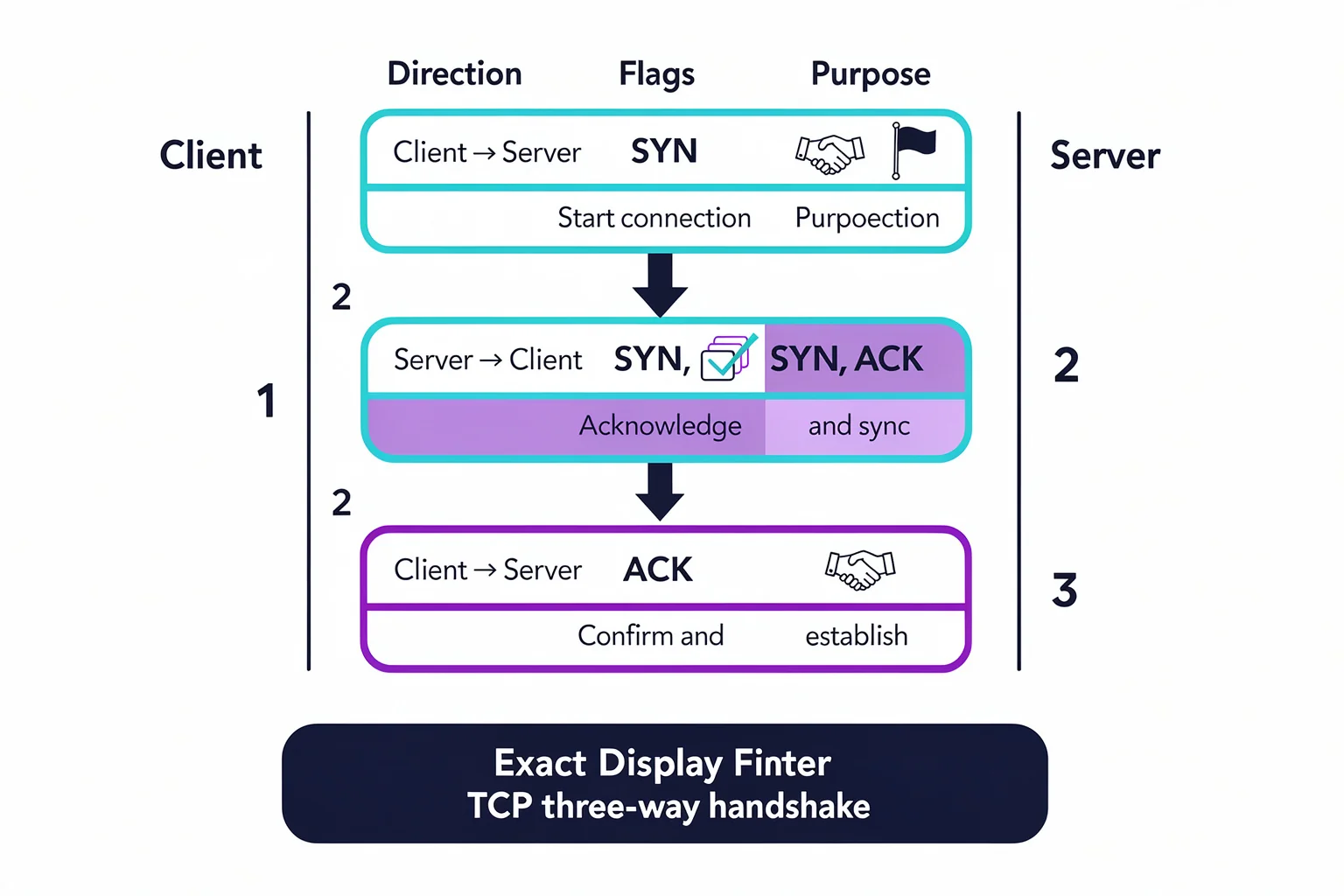
Every Network+ candidate needs to understand the TCP three-way handshake, and this filter isolates the initial SYN packets that start a connection. When an exam item displays a capture and asks “Did the server respond to the client’s SYN?” or “What happened after the third retransmission?”, filtering to just SYNs collapses the timeline to a simple sequence of attempts. It falls squarely under Domain 1.2 and 5.2, where the exam tests your ability to read protocol behaviour.
I recommend typing it as a compound: tcp.flags.syn == 1 && tcp.flags.ack == 0. Without the ack == 0 check, you’ll catch SYN-ACK packets as well, which muddies the picture. If you need to see the full three-way handshake for a single conversation, combine with ip.addr: ip.addr == 10.0.0.1 && (tcp.flags.syn == 1 || tcp.flags.ack == 1). A small limitation: on fast modern networks, retransmissions stack up quickly. Sometimes you’ll need an additional display filter like tcp.analysis.retransmission to spot the difference.
tcp.analysis.retransmission — Catch the Drops
Syntax: tcp.analysis.retransmission
When the exam narrative mentions “intermittent connectivity” or “slow application performance,” this filter separates a red herring from the root cause. Wireshark’s expert analysis tags packets with retransmission events, and this display filter pulls them into one view. Domain 5.2 asks you to interpret performance metrics; knowing how many retransmissions occurred — and whether they were fast retransmissions or time‑out retransmissions — is a scoring differentiator.
The filter is straightforward: type tcp.analysis.retransmission and you’ll see every packet Wireshark believes was sent more than once. In a timed simulator session, that can save you five minutes of scrolling through suspicious-looking frames. Be aware that false positives happen; if the capture missed the original packet due to a tap placement, Wireshark may flag a normal packet as a retransmission. Verify by checking the sequence numbers in the packet details. For a deeper dive into reading those details, our packet analysis skills guide walks through the exact fields.
dhcp — See the IP Assignment Dance
Syntax: dhcp
DHCP is a four-step conversation that the N10-009 exam expects you to recognise: Discover, Offer, Request, Acknowledgement. The dhcp display filter shows all four messages, letting you answer questions like “Did the client receive an address?” or “Which DHCP server responded first?” There’s no better way to prove you can troubleshoot address assignment issues — a direct match for Domain 2.3 and 5.2.
I’ll often watch a candidate stare at a capture, completely unsure why a workstation has an APIPA address. Typing dhcp reveals the Discover packets leaving the host but no Offer returning, immediately pointing to a server-side problem or VLAN mismatch. Use dhcp.option.dhcp_message_type to filter by specific messages: dhcp.option.dhcp_message_type == 1 for Discover, == 2 for Offer. The filter is case-sensitive, so lowercase dhcp is correct. It won’t capture BOOTP if you’re working with a legacy capture, but for Network+ that’s a non-issue.
arp — Layer 2’s Hidden Helper
Syntax: arp
ARP queries might feel like background noise, but the exam will occasionally present a capture where the host resolves an IP but the packet never reaches the gateway. Filtering for arp shows every ARP request and reply, letting you confirm whether a MAC address was learned and whether the correct interface replied. Domain 1.2 covers ARP, and even in the troubleshooting domain you might need to verify that a proxy ARP or gratuitous ARP is responsible for a routing anomaly.
The beauty of arp is its simplicity: one unadorned keyword and your capture shrinks to just the frames where IP-to-MAC mapping was attempted. If you need to see only requests: arp.opcode == 1. Only replies: arp.opcode == 2. A word of caution — on a busy switched network, ARP chatter can fill a capture fast. In the exam, the capture is usually pre-filtered for you, but in real lab practice you’ll appreciate adding a capture filter to limit volume before the pcap file is written.
Capture Filters: host, net, and port
Syntax: host 192.168.1.1, net 10.0.0.0/24, port 53
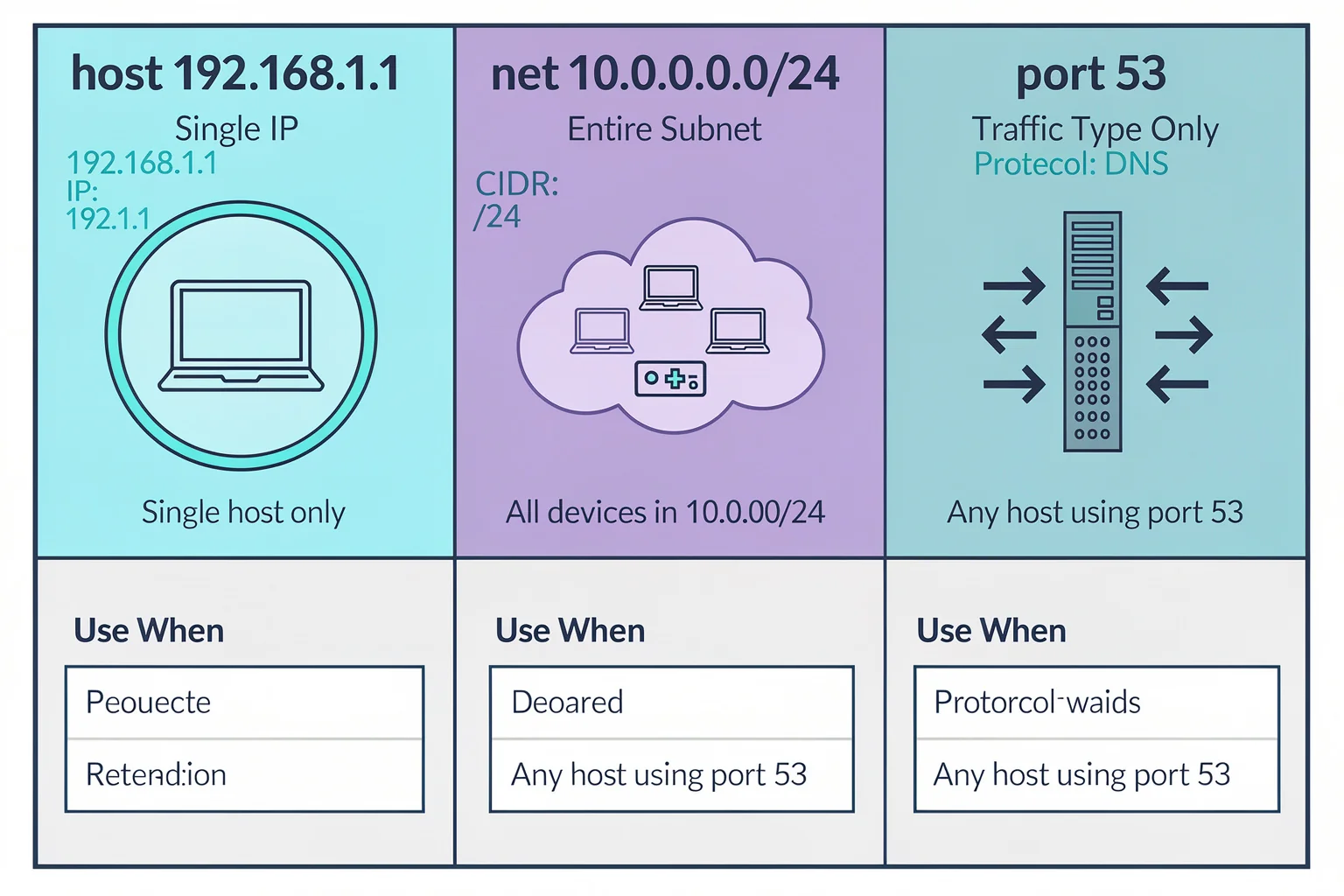
All of the filters above are display filters — they slice up a capture file that already exists. Capture filters work at the collection level and use Berkeley Packet Filter (BPF) syntax. On the N10-009, you’re more likely to be handed a pre‑captured file than to set up a live capture, but understanding BPF still matters because the exam objectives include using packet sniffer tools (5.3) and sometimes ask you to identify the correct capture filter for a scenario.
As the Wireshark FAQ explains, capture filters reduce the volume of data saved, which is essential when you’re monitoring a live trunk port. In an exam-style question, you might be asked: “Which filter captures only HTTP traffic from a specific server?” The answer would be something like host 192.168.1.100 and tcp port 80. Another common scenario: “Capture all traffic on the 172.16.0.0/16 subnet except SSH.” That’s net 172.16.0.0/16 and not port 22.
Memorising the three core BPF qualifiers — host, net, and port — will cover 95% of what appears on the test. For practice, try writing a capture filter and then applying display filters on the resulting file within the PlanetCert simulator. You’ll build the mental muscle that separates a confident answer from a frantic scroll.
Where to Practise These Filters
The memorisation only sticks when you type the syntax under pressure. I keep a scratch‑pad of the top display filters open next to me during any timed session, and after a few runs the keystrokes become reflex. If you’re still building that reflex, here are some resources that connect these filters to real exam performance.
- Wireshark Packet Captures That Actually Help You Pass Network Exams
- Wireshark Certification Paths That Actually Boost Your Salary
- Practice Exam vs Real Exam: Key Differences Explained
browse the relevant exam page and purchase a practice test

Discussion
Question Comments
0 comments·0 participantsSign in to leave a comment and access more free questions.